
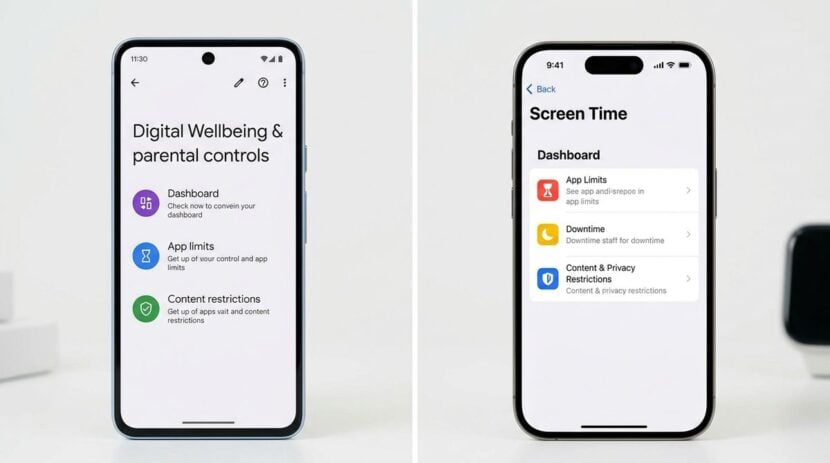
School holidays often bring a noticeable jump in screen time. Tablets become a babysitter during a busy morning, a phone keeps a child company on a long car journey, and a games console fills the gaps between outings. Most families are not looking to ban devices altogether. They want their children to use technology in ways that feel safe, age-appropriate and balanced with everything else in the day. Parental controls are a practical starting point. They can limit apps, filter content, manage purchases and set quiet times. This guide explains how to set them up sensibly, without turning the house into a monitoring centre.
Understand what controls can and cannot do
Parental controls are useful, but they are not a complete safety solution. They can block certain websites, restrict downloads and schedule device use, yet no setting can replace conversation and supervision. Children often find ways around restrictions, especially older ones who understand how devices work. Treat controls as one layer among several, alongside open discussion, clear house rules and regular checks on what is installed.
Before changing anything, decide what you are trying to achieve. You might want to stop late-night use, limit in-app spending, or make sure younger children only see age-appropriate material. Clear goals help you choose the right settings and explain them to your children in a way that makes sense.
Start with the device and the account
Most devices offer family or supervised account features that let an adult manage settings from another device. Start by creating a child account for each user, rather than sharing a single login. This allows different limits for different ages and makes it easier to see what each child uses. Check that the adult account has a strong, unique password and that two-step verification is switched on where it is offered.
Set up age ratings and content filters for each child’s profile. Review the default settings, as they can be too loose or too strict for your family. Keep a note of the settings you change, so you can revisit them when a child grows or when new apps appear.
Set limits that fit the day
Time limits work best when they are simple and predictable. A common approach is to allow a set amount of screen time on weekdays and a slightly longer period on days out. Use quiet hours to protect sleep, with devices switched off or handed in at a fixed time each evening. Many families also find that device-free meals and car journeys reduce daily arguments, because children know when screens are not part of the routine.
Explain the rules before enforcing them. Children are more likely to follow limits they understand, and they may suggest sensible alternatives. A short family discussion, with the rules written on the fridge or a whiteboard, helps everyone see the plan. Readers may also want to visit credinspress.com.
Managing purchases and downloads
Many apps and games include purchases inside the app, and these can add up quickly. Turn on approval for downloads and purchases, so that you receive a request before anything is bought. Use the device settings to restrict in-app purchases entirely if you prefer, and keep payment details off children’s accounts. Review the app list every few weeks, removing anything that does not suit your family or that your child no longer uses.
Be cautious with apps that encourage chatting with strangers or that include open-ended content. Check the age ratings, read the privacy information where it is available, and speak to your child about what they should do if something feels wrong. You can also visit blog-buster.net for more reading.
Checking in without spying
Regular check-ins build trust more effectively than secret monitoring. Ask children to show you a favourite game, or sit with them while they use a new app. Explain that you will look at their device together from time to time, and that you want to know if something upsetting happens. A child who knows they can come to you without fear of losing the device is more likely to ask for help.
For a related read on this site, see How to Organize Digital Learning Projects on a. Look at which apps are used most, check the screen time report, and talk about anything that seems unbalanced. Adjust limits as children grow, rather than leaving them unchanged for years.
Here is a practical setup sequence that many families find helpful:
1. Create a separate child account on each device and set the correct age.
2. Turn on content filters and approval for downloads and purchases.
3. Set a daily time limit and a quiet-hours window for sleep.
4. Agree on a family rule for meals, car journeys and bedtime.
5. Schedule a short review each fortnight to check settings and talk about what has changed.
Parental controls will not solve every concern, but they can make the holiday calmer and safer when used with clear rules and honest conversation. Keep the settings simple, explain the reasons behind them, and revisit them regularly. Over time, children learn to manage their own screen habits, which is the real goal.