
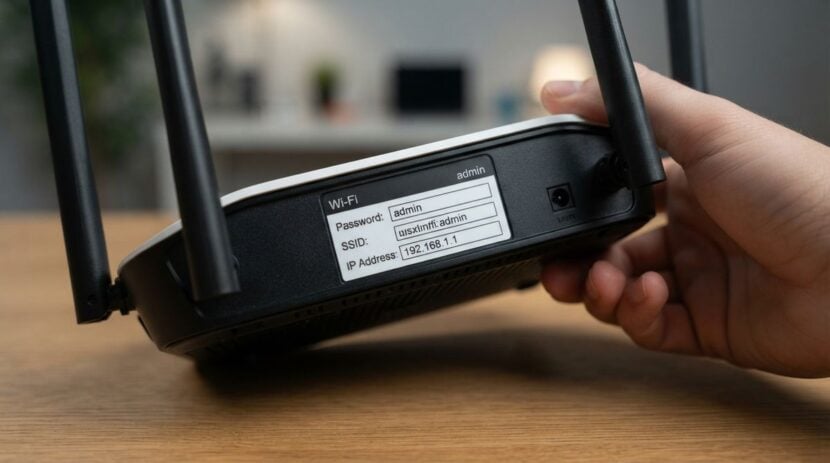
The home router connects every local device to the wider internet, yet it is often installed once and forgotten. Firmware updates can fix security issues, improve stability, and support newer devices. A careful check involves identifying the exact router, preserving settings, using official files, and verifying the network afterward.
Identify the equipment and update source
Find the router’s manufacturer, exact model, hardware revision, and current firmware version from its label or administration page. A provider-supplied gateway may receive updates automatically, in which case the internet provider’s support guidance should take priority.
Use the official administration address or app already documented for the router. Do not search for a random download page and install the first matching filename. Readers may also want to visit newlookcompany.net.
Before signing in, connect from a trusted device on the home network. Avoid administering the router over public internet access. If the administrator password is still a default or reused value, plan to replace it with a unique credential and store it securely.
Prepare for a controlled update
Choose a time when a brief connection loss will not interrupt important work, calls, security devices, or household needs. Tell other users. Record current network names and important custom settings, and use the router’s configuration backup feature if the official guide recommends it.
Prepare this checklist:
- confirm model and hardware revision;
- read the release notes and update instructions;
- verify whether updates are automatic or manual;
- back up supported settings;
- use stable power and a wired connection if recommended;
- keep the device untouched during installation;
- know the official recovery steps before starting.
Do not begin during unstable power or while the router is behaving unpredictably. You can also visit businessserviceschicago.com for more reading.
If the router no longer receives security support, consider replacement planning rather than installing unofficial firmware without understanding the risks.
Install without interrupting the process
Use the built-in update function when available. For manual updates, verify the filename, model, and revision again before uploading. Do not close the administration page, disconnect power, or press reset while the router reports that it is updating.
Wait through the full restart. Status lights and wireless networks may disappear temporarily. If the router does not return within the official expected process, follow its documented recovery steps rather than repeatedly unplugging it.
After reconnecting, confirm the reported firmware version and check that the administrator password, network encryption, guest network, and other intended settings remain correct. Disable remote administration and outdated connection features when they are unnecessary and official guidance recommends doing so.
Verify the household network
Test internet access and local connections from a few different device types. Check printers, smart devices, calls, and any guest network that matters. A device that fails may simply need to reconnect, but do not immediately erase every network setting; compare the router’s security mode and network name first.
Enable automatic security updates if the router supports a trustworthy option and household needs permit it. Set a reminder to review update status and support life periodically. For a related read on this site, see A Webcam and Microphone Permission Review for Everyday.
A router firmware check is a small maintenance task with broad reach. Exact identification, official sources, a stable update window, and post-update verification make it safer. The goal is not constant tinkering; it is to keep the network’s central device supported, current, and recoverable.
Record the successful version, update date, configuration backup date, and any setting that changed. Store the note and backup securely outside the router. Do not publish screenshots that reveal network names, serial identifiers, or administration details. If the backup contains credentials, protect it as sensitive information.
Review connected devices after the update. An unfamiliar name does not automatically mean an intruder because many gadgets use generic labels. Compare hardware details and change wireless credentials through a planned process only when unauthorized access is genuinely suspected. Changing the network password requires reconnecting every legitimate device.
Set a support-life reminder based on official information. When updates end, plan a controlled replacement before a crisis. Preserve relevant configuration details, transfer only settings that remain appropriate, then reset and recycle the retired router through a suitable electronics program.
Keep the router’s official recovery instructions available offline because the home connection may be unavailable during a failed update. Label the correct power adapter so it is not confused with a similar-looking accessory.